Claude Cowork: A Guide To Getting AI To Work For You
Cowork turns Claude from a chatbot into an agent that actually does work. I built my own version called Jarvis and here's what I learned.
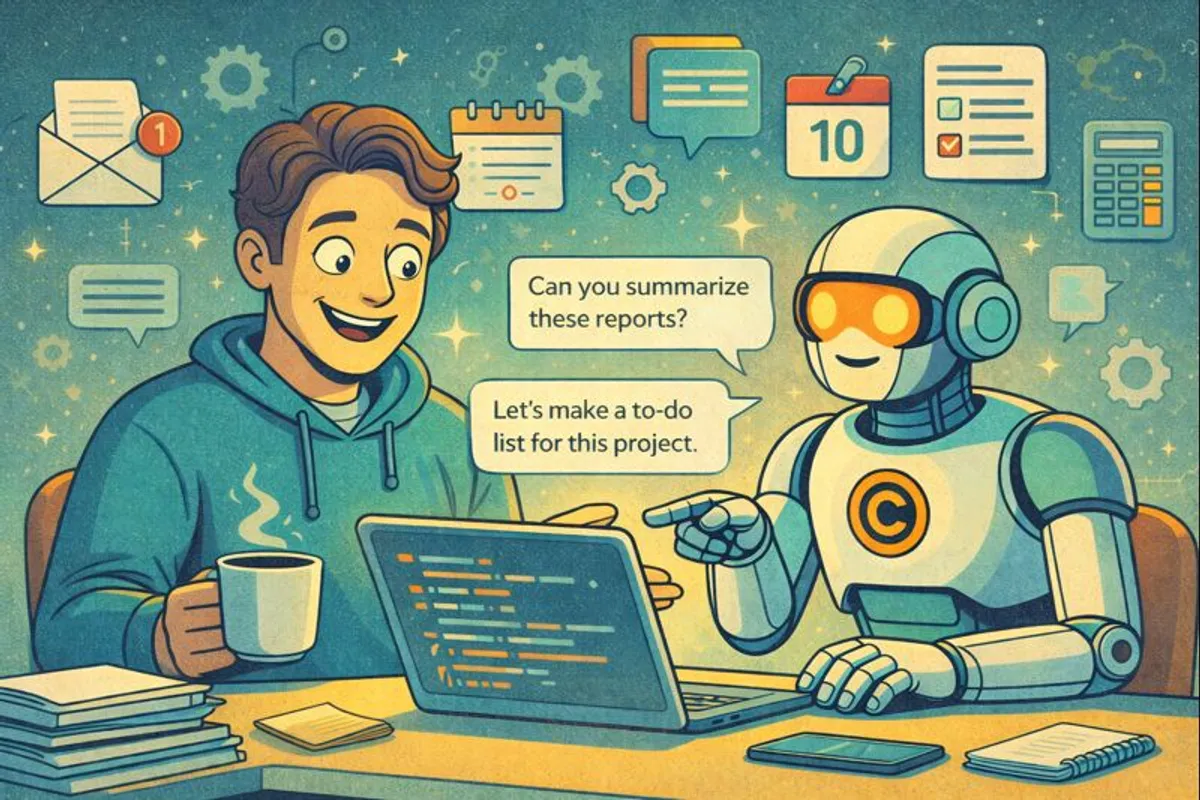
Table of Contents
For months, I’ve been building my own AI assistant inside Claude Code. It reads my emails, plans my day, tracks my projects, and follows up with contacts. I call it Jarvis.
Then Anthropic launched Cowork and gave everyone else the same superpower.
If you’re not familiar with Claude Code, I’d recommend reading my guide here first. It’ll give you the baseline context for what’s to come.
Cowork is being called “Claude Code for the rest of your work.” That’s accurate. It’s the same agentic architecture that powers Claude Code, but wrapped in a friendly graphical interface anyone can use. No terminal required.
This is a bigger deal than it sounds. Let me show you why.
What is Cowork
Cowork lives inside the Claude Desktop app on macOS. You give it access to a folder on your computer, describe what you want done, and Claude executes the task autonomously. It:
- Reads and writes files in your designated folder
- Runs multiple steps without waiting for your approval
- Coordinates sub-agents for complex tasks
- Creates real documents (Excel with working formulas, PowerPoints, formatted reports, etc.)
It’s available to Pro subscribers ($20/month) and Max subscribers ($100+/month). Windows support is coming mid-2026.
The technical magic happens in a sandboxed Linux VM using Apple’s Virtualization Framework. Your files get mounted into this isolated environment, so Claude can work on them without touching the rest of your system.
But you don’t need to know any of that. You just describe what you want and let Claude figure it out.
How Cowork Differs from Chat and Claude Code
| Feature | Claude Chat | Claude Code | Cowork |
|---|---|---|---|
| Interface | Web/Desktop chat | Terminal CLI | Desktop GUI |
| File access | Upload only | Full local access | Sandboxed folder |
| Execution | Responds to prompts | Runs commands autonomously | Runs tasks autonomously |
| Output | Text/artifacts | Code + files | Documents + files |
| Audience | Everyone | Developers | Knowledge workers |
| Requires coding | No | Helpful | No |
How People Are Using Cowork
The early adopters are already doing wild things. Here are real use cases with the actual prompts you can steal.
File Organization
The prompt:
“Organize my Downloads folder. Create subfolders for: Documents, Images, Videos, Archives, Installers, and Other. Move each file to the appropriate folder. Rename files that have messy names to something readable with the format YYYY-MM-DD-description.”
What Claude does:
- Scans all files in the folder
- Identifies file types by extension and content
- Creates the subfolder structure
- Moves files to appropriate locations
- Renames files with consistent formatting
- Reports what it changed
Pro tip: Run this on a copy of your Downloads folder first. Claude will ask before deleting anything, but better safe than sorry.
Receipts to Expense Reports
The prompt:
“Look at all the receipt images in this folder. Extract the vendor name, date, amount, and category for each one. Create an Excel spreadsheet with columns for each field, plus a Total row at the bottom with a SUM formula. Name it expenses-january-2026.xlsx.”
What Claude does:
- Opens each image file
- Uses vision to read receipt contents
- Extracts structured data
- Creates an actual .xlsx file with working formulas
- Not a CSV that you need to fix—a real spreadsheet
Sample output structure:
| Vendor | Date | Amount | Category |
|---|---|---|---|
| Uber | 2026-01-15 | $24.50 | Transport |
| Whole Foods | 2026-01-16 | $87.32 | Groceries |
| AWS | 2026-01-17 | $142.00 | Software |
| Total | $253.82 |
Finance teams are reporting 80-90% time savings on expense processing.
Research Synthesis
The prompt:
“I have a folder of notes, articles, and PDFs about [topic]. Read through all of them. Create a comprehensive report that synthesizes the key insights, identifies common themes, notes any contradictions, and includes a bibliography of sources. Save it as research-synthesis.md.”
What Claude does:
- Reads every document in the folder
- Extracts key points from each
- Identifies patterns and themes across sources
- Notes where sources disagree
- Produces a structured report with citations
- Saves it as a markdown file you can edit
Pro tip: Create a sources/ subfolder and drop your research materials there. Point Cowork at the parent folder so it can read from sources/ and write the output alongside it.
Meeting Notes to Action Items
The prompt:
“Here’s a transcript from today’s team meeting [paste or attach]. Extract all action items mentioned. For each one, identify who’s responsible and any deadline mentioned. Create a markdown file with the action items as a checklist. Also create a brief summary of the key decisions made.”
What Claude does:
- Parses the transcript
- Identifies commitments and assignments
- Extracts names and deadlines
- Produces a structured checklist
- Summarizes decisions separately
Sample output:
# Team Meeting - Jan 21, 2026

## Key Decisions
- Moving forward with Option B for the API redesign
- Pushing launch to Feb 15 to allow for additional testing

## Action Items
- [ ] @sarah: Update the API documentation by Friday
- [ ] @mike: Set up staging environment by EOD Tuesday
- [ ] @jessica: Schedule user testing sessions for next week
- [ ] @team: Review PR #234 before Wednesday standup
How This is Different From ChatGPT
You’re probably looking at these examples and going, so it can read and create files, so what? ChatGPT can do this.
Yes and no.
That example of converting meeting notes to action items can absolutely be done by ChatGPT. But what happens after? You probably want to follow up with those tasks, do some work, or take some action. And that’s where ChatGPT typically stops and you have to take over.
That’s the difference between a chatbot and an agent. The agent reads files, writes documents, executes tasks, and works autonomously while you do something else.
I can’t ask ChatGPT to find everyone I haven’t responded to in two weeks, check my CRM for our interaction history, then draft follow-ups in my voice. But if I give Claude Code (or Cowork) access to my email and CRM, it can do exactly that.
Once you start thinking of it as an entity capable of doing what a human assistant can do, everything opens up.
What I Learned Building My Own Version
This is the exact reason I built Jarvis. As helpful as ChatGPT is, I still need to execute most of the work, and I wanted an AI that could execute for me as well.
So by building Jarvis, I inadvertently built what Cowork is becoming and I’ve learned some lessons that can help you make the most of it.
1. All Your Work Is Code
Think about your daily work:
- Reading emails → Code can open and parse emails
- Creating documents → Code can generate formatted files
- Analyzing spreadsheets → Code can run calculations
- Sending follow-ups → Code can call email APIs
- Organizing files → Code can move and rename files
Every repetitive task you do can be reduced to a script. You just didn’t have time to write the scripts.
Claude Code (and by extension, Cowork) writes and runs those scripts on the fly. You describe what you want in plain English, it figures out how to make it happen.
Start noticing which tasks drain your time without requiring your brain. Those are automation candidates.
A good test: “Am I doing the same thing I did last week, just with different data?” If yes, Cowork can probably handle it.
2. You Are The Context
The more Claude knows about your work, the better it performs.
When I built Jarvis, I created a context document:
# About Sid

## Current Projects
- Client A: Building an AI agent for customer support
- Client B: Consulting on LLM deployment
- Personal: Writing blog posts, creating courses

## How I Work
- Calendar is Google Calendar
- Email is Gmail
- I prefer bullet points over long paragraphs
- My writing style is conversational and direct

## Weekly Rhythms
- Monday: Planning and admin
- Tue-Thu: Deep work and client calls
- Friday: Writing and content creation

## Communication Preferences
- Respond to clients within 24 hours
- Flag anything urgent immediately
- Draft emails in my voice (casual but professional)
Claude reads this context and adapts. It doesn’t need me to explain from scratch every time.
With Cowork: Create a CONTEXT.md file in your working folder. Describe your role, your projects, your preferences. Reference it when you give Claude tasks:
“Read CONTEXT.md first, then [do the task].”
The more context you provide upfront, the less you correct later.
3. Package Workflows Into Reusable Prompts
Some tasks you do once. Others you do every day.
For recurring tasks with Jarvis, I built custom Claude Skills, reusable commands I can invoke anytime.
My /plan-day command:
# Plan Day Workflow

1. Check today's date and day of week
2. Read my calendar for today's events
3. Review my project files for open tasks
4. Check email for anything urgent
5. Consider my energy levels (Monday = high, Friday = low)
6. Create a prioritized task list with time blocks
7. Output as a markdown checklist

Format:
## Today: [Date]

### Top 3 Priorities
1. [Most important task]
2. [Second priority]
3. [Third priority]

### Schedule
- 9:00-10:30: [Task]
- 10:30-11:00: Break
...
My /email-triage command:
# Email Triage Workflow

1. Connect to Gmail and fetch unread messages
2. Categorize each email:
   - URGENT: Needs response today
   - THIS WEEK: Needs response within 7 days
   - FYI: No response needed
   - ARCHIVE: Can be archived
3. For URGENT emails, draft a response
4. Output a summary with recommended actions

Format:
## Email Triage - [Date]

### Urgent (respond today)
- [Sender]: [Subject] - [Recommended action]
  Draft response: [draft]
...
With Cowork: Save your best prompts as text files in your working folder. When you need them:
“Run the workflow described in email-triage-prompt.txt”
Turn 20-minute tasks into 2-minute tasks.
4. Connect Your Projects
Isolated tasks are useful. Connected systems are powerful.
In Jarvis, everything links together:
- Contacts connect to projects
- Projects connect to goals
- Daily tasks connect to bigger priorities
- When I work on something, Claude understands where it fits
Example folder structure:
my-work/
├── CONTEXT.md           # About me and how I work
├── projects/
│   ├── client-a/
│   │   ├── CLAUDE.md    # Project context
│   │   ├── notes/
│   │   └── deliverables/
│   ├── client-b/
│   │   ├── CLAUDE.md
│   │   └── ...
│   └── personal/
│       ├── blog/
│       └── course/
├── contacts/
│   ├── clients.md
│   └── collaborators.md
├── workflows/
│   ├── plan-day.md
│   └── email-triage.md
└── inbox/               # Drop files here for processing
Pro tip: Ask Claude to create CLAUDE.md index files that summarize what’s in each folder. When you give Claude a new task, it can read these indexes to understand your full context quickly.
“Create a CLAUDE.md file for each project folder that summarizes the project status, key files, and current priorities.”
5. Start Small, Then Expand
Don’t automate everything at once.
Pick ONE workflow that takes time every day:
- Planning your morning
- Processing email
- Summarizing meeting notes
- Researching a topic
Get that working first. Learn what Claude does well and where it needs guidance.
Then add another workflow. And another. Each one teaches you something new about what’s possible.
My progression with Jarvis:
- Week 1: Basic to-do list tracking
- Week 2: Added email integration
- Week 3: Added calendar integration
- Week 4: Added daily planning workflow
- Week 6: Added contact/CRM tracking
- Week 8: Added habit and goal tracking
- Ongoing: Refinements and new workflows
Each piece builds on the last.
6. The Compound Effect
Every time you use Cowork, you’re training yourself to think in terms of delegation.
You start noticing tasks that could be automated. You get better at writing clear instructions. You build a library of workflows that work.
This compounds:
- First week: “Oh cool, it organized my files”
- First month: “I’ve saved 5 hours on admin work”
- Third month: “I have a full operating system for my work”
The people who get the most out of AI tools aren’t the ones who use them occasionally. They’re the ones who integrate them into daily workflows and keep expanding what they delegate.
Jarvis In Action: A Real Example
Let me show you how this plays out in practice.
Yesterday, someone asked me to speak at their AI event. Here’s what that workflow looks like with different approaches.
The Manual Way
- Read the email invitation
- Check my calendar for conflicts
- Open Google Docs to draft talking points
- Research what I’ve said before on this topic
- Open Google Slides to create a deck
- Go back to email to respond
- Add a reminder to prepare
- Update my speaking tracker spreadsheet
Time: 45-60 minutes of admin work before I even start on content.
The ChatGPT Way
- Paste the email into ChatGPT
- Ask it to summarize the opportunity
- Ask it to suggest talking points
- Copy suggestions to Google Docs
- Still have to create slides manually
- Still have to write the email myself
- Still have to update my calendar and tracker
Time: 30-40 minutes. AI helps with thinking, but I still do all the execution.
The Jarvis Way
My prompt:
“I just got invited to speak at [Event]. Check my calendar for [Date]. If I’m free, draft a confirmation email. Create a project folder for this talk. Add the key details to my speaking-tracker.xlsx. Block prep time on my calendar for the week before.”
What Jarvis does:
- Reads the email (has access via Gmail API)
- Checks my calendar (has access via Google Calendar API)
- Confirms I’m available
- Drafts a response in my voice
- Creates
/projects/speaking/event-name/folder - Adds a row to my speaking tracker
- Blocks 2 hours for prep on my calendar
- Asks: “Want me to start on the presentation outline?”
Time: 2 minutes to review and approve.
Then comes the real magic. I say:
“Yes, interview me about what I want to cover in this talk.”
Jarvis asks me questions:
- “What’s the main message you want the audience to walk away with?”
- “What personal experience can you share to illustrate this?”
- “What’s a common misconception you want to address?”
I talk through my ideas. Jarvis captures my answers and generates a presentation outline based on my insights, not generic AI content.
Hours of work compressed into minutes. Multiply that across multiple projects and you see why I built this.
Tips and Gotchas
A few things I’ve learned the hard way.
Start with Copies, Not Originals
Until you trust Cowork with a workflow, run it on copies of your files. Create a sandbox/ folder, duplicate your data there, and experiment.
Be Specific About Output Format
Instead of:
“Create a report about these files.”
Say:
“Create a markdown report with these sections: Summary, Key Findings, Recommendations. Use bullet points. Save as analysis-report.md.”
Give Context on Tone and Audience
Instead of:
“Draft an email to the client.”
Say:
“Draft an email to [Client Name]. Tone: professional but warm. They’re non-technical, so avoid jargon. Reference our last conversation about [topic].”
Check Token Usage
Cowork uses significantly more tokens than regular chat because it’s running multiple steps autonomously. Keep an eye on your usage in Settings > Usage, especially on Pro plans.
Max plans handle this better, but batch your work either way and give Cowork related tasks together rather than one-off requests.
Handle Sensitive Data Carefully
Cowork runs in a sandboxed VM, but you’re still giving an AI access to your files. Don’t point it at folders with:
- API keys or credentials
- Sensitive personal information
- Client data covered by NDAs (without permission)
Create a dedicated working folder with only the files needed for the task.
Getting Started with Cowork
Here’s how to set it up and run your first task.
Step 1: Check Your Subscription
Cowork requires a paid Claude plan:
- Pro ($20/month): Access with usage limits
- Max ($100-200/month): Higher limits, priority access
If you’re on the free tier, you’ll need to upgrade at claude.ai/settings.
Step 2: Download Claude Desktop
Download the macOS app from claude.ai/download. Install it like any other Mac app.
Step 3: Find the Cowork Tab
Open Claude Desktop. You’ll see tabs at the top:
- Chat — Standard conversation mode
- Code - Claude Code for agentic coding
- Cowork — The new agentic mode
Click Cowork to switch.
Step 4: Grant Folder Access
Cowork needs a folder to work in. Click the folder icon and select a directory. I recommend starting with something like:
~/Documents/cowork-sandbox/Create a test folder with a few files to experiment with. Don’t point it at your entire Documents folder yet—start small.
Step 5: Run Your First Task
Try something simple:
“List all the files in this folder and tell me what each one contains.”
Claude will:
- Read the directory contents
- Open each file
- Summarize what it finds
- Report back to you
Once that works, try something more useful:
“Organize these files into subfolders by type (documents, images, spreadsheets).”
Watch Claude create folders and move files around.
Getting Started: Your First Week
Here’s a practical roadmap to go from “Cowork curious” to “Cowork power user.”
Day 1: Setup and Exploration
- Upgrade to Pro or Max if needed
- Download Claude Desktop
- Create a
cowork-sandbox/folder - Run your first task: “List and describe all files in this folder”
Day 2: File Organization
- Copy your Downloads folder to your sandbox
- Run: “Organize these files by type into subfolders”
- Review the results, note what worked and what didn’t
Day 3: Document Creation
- Put a few receipts or invoices in a folder
- Run: “Create a spreadsheet summarizing these documents”
- Check that formulas work correctly
Day 4: Context Building
- Create a
CONTEXT.mdfile describing how you work - Run a task that references it: “Read CONTEXT.md, then organize these files according to my preferences”
Day 5: Workflow Automation
- Identify one weekly task that takes 15+ minutes
- Write a prompt that describes the workflow
- Save it as a reusable template
Weekend: Expand
- Connect a real working folder (carefully)
- Run your saved workflow on real data
- Start building your prompt library
What’s Next
Cowork lowers the barrier so more people can experience what this feels like. An AI that actually does work instead of just answering questions.
I’ve been living in this world for months with Jarvis. It’s changed how I think about work. Admin tasks that used to eat hours now take minutes. I focus on the creative work—the thinking, the strategy, the human stuff, while Claude handles the execution.
The shift from chatbot to agent is real. Cowork makes it accessible.
If you want to go deeper (build your own Jarvis, create custom workflows, connect APIs) check out my Jarvis guide and my video walkthrough of how I built my setup.
Now go automate something.
TLDR:
- Cowork = Claude Code without the terminal. Same agentic power for non-developers.
- Think agent, not chatbot. Give it tasks to execute, not questions to answer.
- All your work is code. Repetitive tasks can be automated—you just didn’t have time to write the scripts.
- Context is everything. Create a CONTEXT.md file describing how you work.
- Build prompt libraries. Save workflows as reusable templates.
- Connect your projects. Use CLAUDE.md files as indexes so Claude understands your full picture.
- Start with one workflow. Get it working, then expand.
- The compound effect is real. Minutes saved become hours saved become a different way of working.
Related Posts
Ralph Wiggum: The Dumbest Smart Way to Run Coding Agents
Forget agent swarms and complex orchestrators. The secret to overnight AI coding is a bash for-loop. I break down the Ralph Wiggum technique and show you how to actually ship working code with long-running agents.

A Guide to Context Engineering: Setting Agents Up for Success
Context beats prompts. Learn the systems that separate high-performing AI agents from the ones that hallucinate and fail—with real architecture patterns.
Cooking with Claude Code: The Complete Tutorial & Guide
Learn how to use Claude Code to build complete apps from scratch. This tutorial covers setup, commands, best practices, and advanced workflows with Sonnet 4.5 and Opus 4.6.